UI overview
The main OCRIS user interface looks like this:
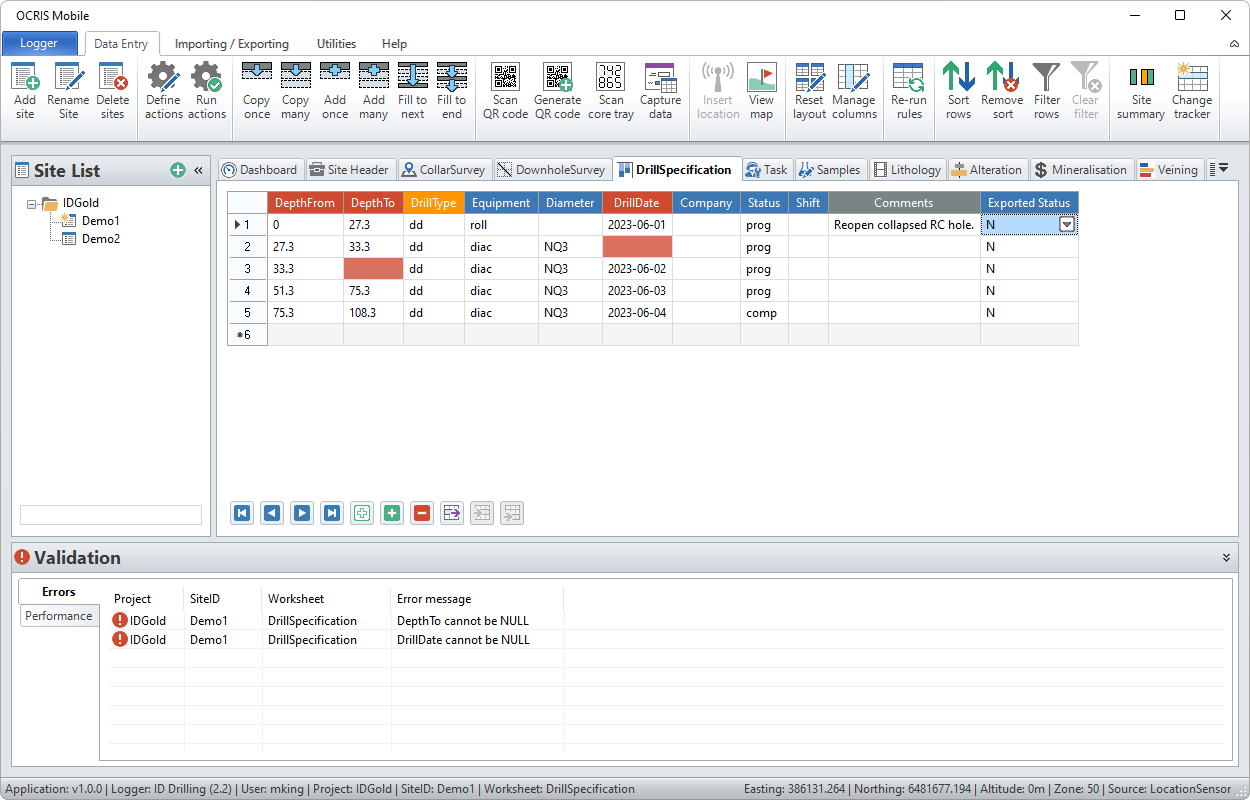
It can be divided into 6 main sections:
- Menus and Toolbar Buttons - Provides quick access to common functions. Toolbar buttons may vary dependent on what menu item is chosen.
- Site List - Lists Header data grouped by Project
- Worksheet Area - Main data entry window, visible tabs will vary depending on the individual configuration
- Record Navigation - Allows for easy movement through existing records on each tab plus addition of new records
- Validation - Real time display of validation errors. Can be limited to a SiteID or all sites within a Project dependant on what is selected in the Selection View Window
- Status Bar - Shows current Logger, User, Project, SiteID and Worksheet. Very useful if areas above are minimised to maximise main worksheet area for data entry
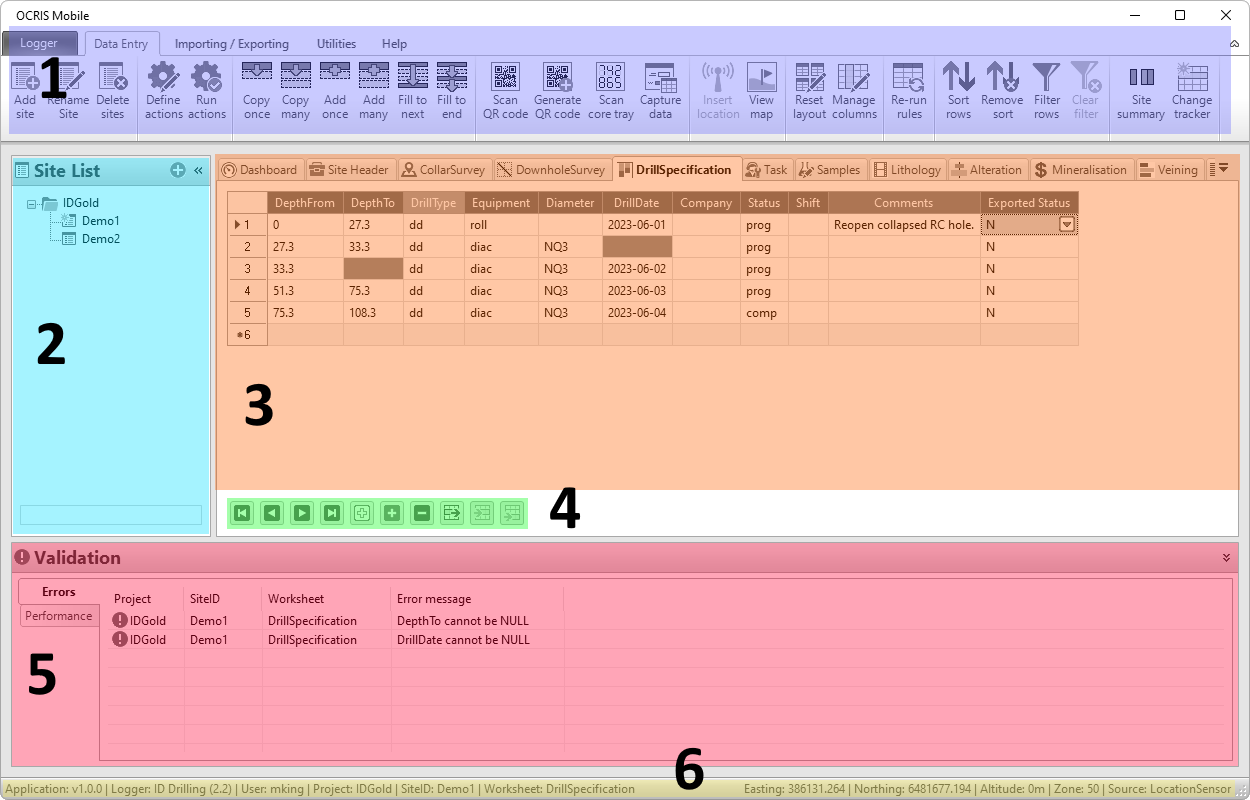
The Site List and Validation workspace windows can be hidden or shown by clicking on the << or >> icons within each section.