Installation and initialization
Before you can install OCRIS Mobile, you need to contact your OCRIS Mobile vendor to obtain your product key.
Once you have a product key, you need to go through the following steps:
- Create an account on the OCRIS Suite website
- Activate your account on the OCRIS Suite website
- Download the OCRIS Mobile software
- Install the OCRIS Mobile software
- Activate the OCRIS Mobile software license
- Add your logger to OCRIS Mobile
Create an account on the OCRIS Suite website
Once you have a product key, you can create an account on the OCRIS Suite website (opens in a new tab)
Activate your OCRIS Suite account
To activate your account on the OCRIS Suite website, you need to navigate to the "Account" section (opens in a new tab) and enter your product key.
Multiple accounts can be linked to the same product key, so each administrator team member can have their own account.
Download the OCRIS Mobile software
Once your account on the OCRIS Suite website has been activated, you will be eligible to download the OCRIS Mobile software (opens in a new tab)
Install the OCRIS Mobile software
Once the OCRIS Mobile software has been downloaded, you can install it by double-clicking on the installer and following the steps on the wizard.
Activate the OCRIS Mobile software license
When you launch the OCRIS Mobile software, you will see the initial login screen:
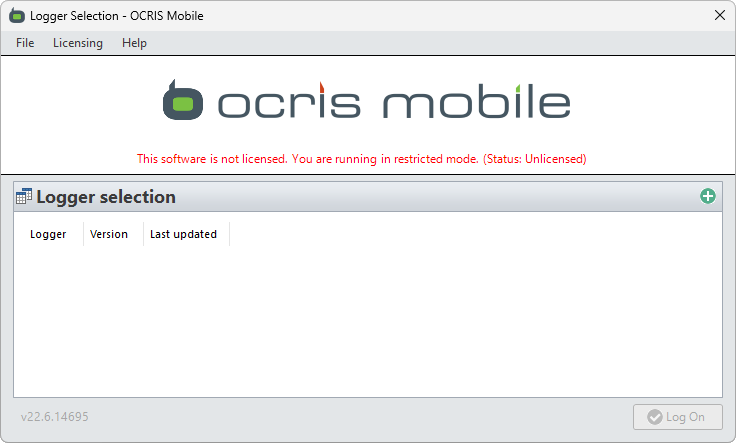
The red warning message indicates that your software's license has not been activated. A license should be active before using the software.
There are two ways to activation OCRIS Mobile:
- If your computer has an internet connection, you can perform an online activation
- If your computer does not have an active internet connection, or OCRIS Mobile is blocked by a firewall, you can perform an offline activation
Online activation
An online activation requires:
- An active internet connection
- Firewall rules allowing HTTPS access to the licensing servers (
https://licensing.nimbletechco.com)
If you are unsure of the above requirements, please contact your system administrator.
To begin the online activation process, click on the Licensing menu, and then select the Activate item.
You will be presented with a field where you can enter your product key. The text will be red if you've entered your product key in the incorrect format, and will change to green once a valid product key has been entered. Once you have entered the product key, press OK to confirm the license activation.
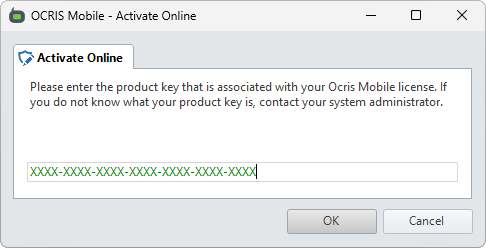
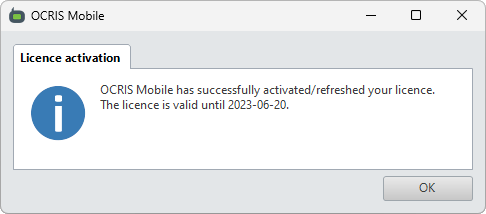
After a few seconds, you should see a window pop up, telling you the status of your license activation.
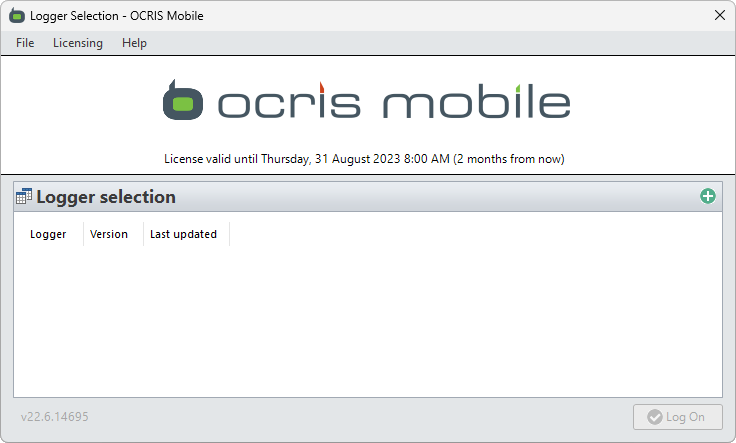
Your login screen should now display your license details, like so:
If your license is nearing expiry, the license details will be shown in red, as a warning that the license needs to be updated soon:
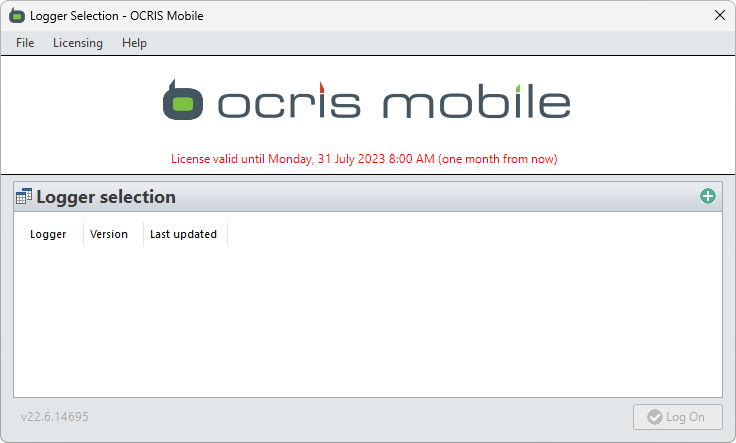
If you're using online activation, OCRIS Mobile will periodically attempt to renew your license activation, without you having to do anything. This will happen automatically when OCRIS Mobile is launched, and without any action required on your behalf. However, you can also trigger a manual license reactivation attempt by clicking on the Licensing menu and selecting the Refresh item.
Offline activation
An offline activation does not require OCRIS Mobile to have an internet connection. Instead, it generates a string of text (known as an activation request payload) that can be transferred to a different computer (via a USB stick, or via email, or via text message, or any other method you have for sending text) and used on that computer to perform an offline activation via the OCRIS Suite Website (opens in a new tab)
To begin the offline activation process, click on the Licensing menu, and then select the Activate (offline) item.
You will be presented with a field where you can enter your product key. The text will be red if you've entered your product key in the incorrect format, and will change to green once a valid product key has been entered. Once a valid product key has been detected, the activation request payload will be displayed, and you will be prompted to either copy it to the clipboard or save it to a file. Once you have done so, you can press OK to continue.
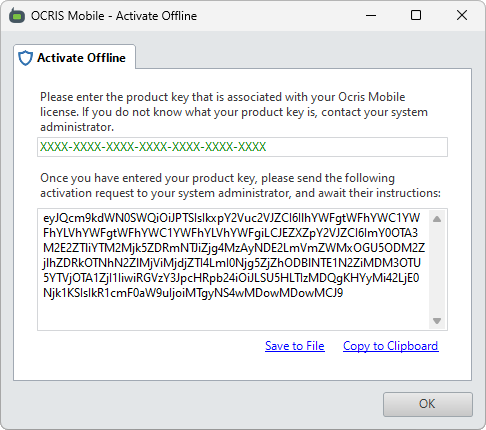
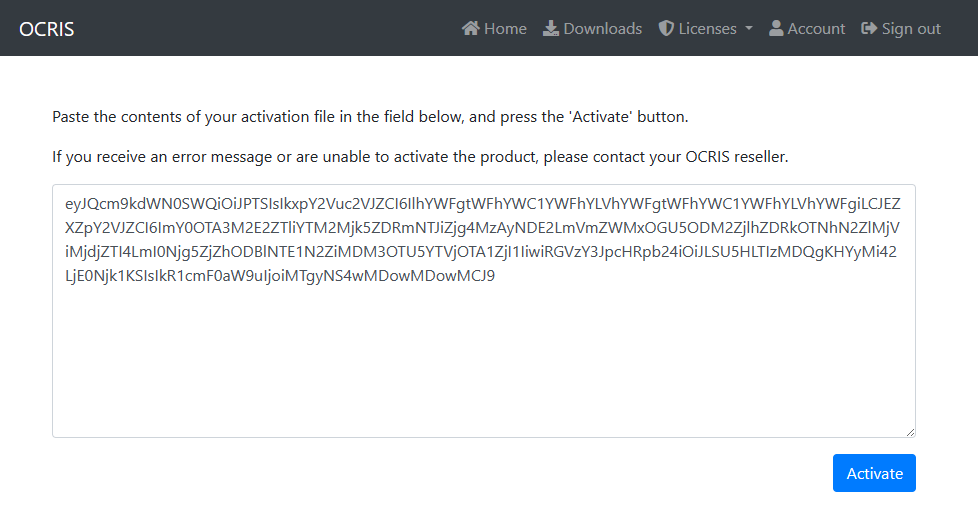
The activation request payload should then be transferred to a system administrator who has internet access. The system administrator can then use the manual activation tool on the OCRIS Suite website, available at https://theocrissuite.com/utils/manual-activation (opens in a new tab).
First, the system administrator must enter the activation request payload:
Next, the system administrator is given an activation response payload. They should save this payload and transfer it back to you:
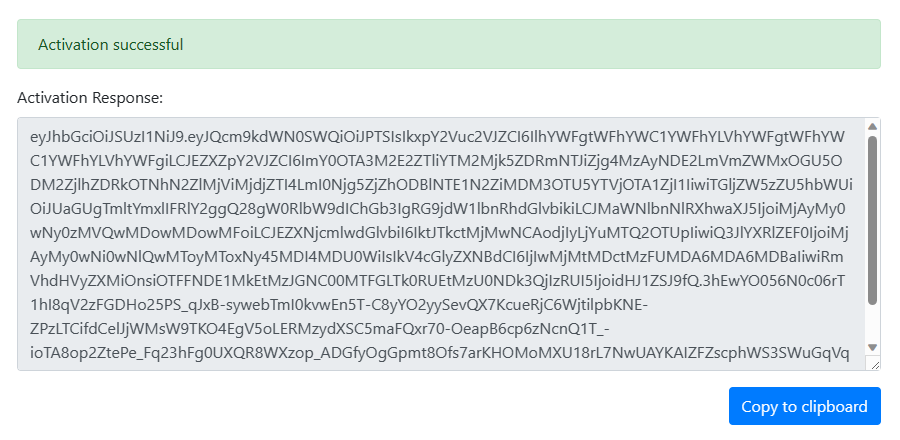
You should click on the Licensing menu, and then select the Apply offline response item.
You will be presented with a field where you can enter the offline response payload.
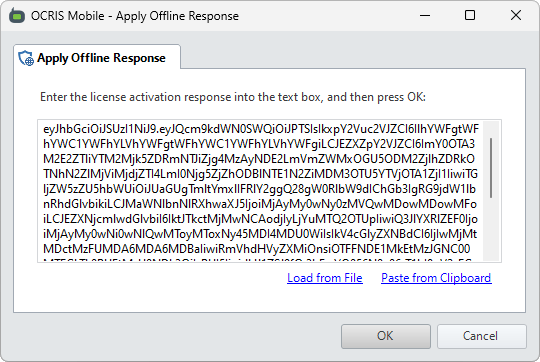
Your login screen should now display your license details, like so:
If your license is nearing expiry, the license details will be shown in red, as a warning that the license needs to be updated soon:
The offline activation process can be repeated to extend an existing license by clicking on the Licensing menu and selecting the Refresh (online) item.
Add your logger to OCRIS Mobile
Once OCRIS Mobile has been installed and activated, it's time to add your logger.
Click on the green plus icon in the Logger Selection section, or click on File and then select the Add logger item. Then, navigate to your logger file (with the extension .ocmdb or .omlogger) and select it.
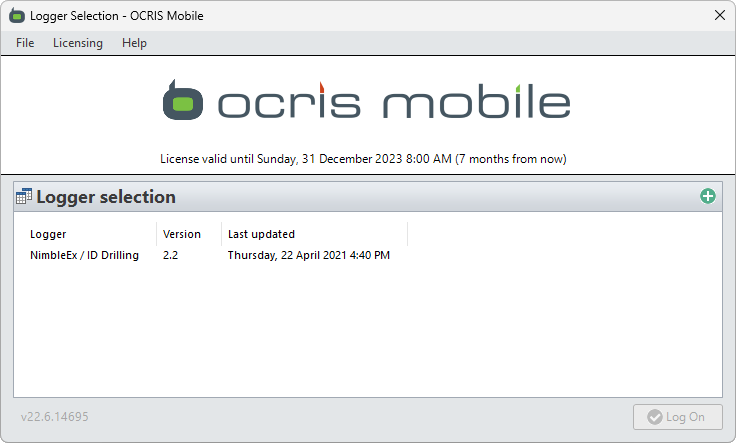
At this point, you are ready to start using OCRIS Mobile. Double-click on your logger, or select it and press the Log On button.